 ALPHA STUDIO
Getting started with
AlphaHuman Studio Standard
From a MetaHuman in Unreal to a rigged character in Blender, in about fifteen minutes. Do the two parts in order: Blender reads what Unreal exports.
Before you start
- Windows 10 or 11, 64-bit.
- Unreal Engine 5.8 with at least one MetaHuman in a project.
- Blender 5.2 or newer.
- Your acceptance mail. Sign in at alphastudio.pages.dev/portal/beta with the address you applied with (Google sign-in works) — it should say you are in.
- If you already have an AlphaHuman Studio installed in Blender (the store edition or a test build), uninstall it first: Edit → Preferences → Add-ons, find it, Uninstall. Only one can be installed at a time.
A. Export a few MetaHumans from Unreal
Blender cannot read a MetaHuman straight from an Unreal project. A free Unreal plugin writes each character out once — its DNA, textures, hair with its colours, and clothes — into one folder that Blender then reads.
- Get AlphaHuman Studio for Unreal, free, on Fab. Press Add to My Library there. Then, in the Epic Games Launcher: Unreal Engine → Library → Fab Library, find AlphaHuman Studio for Unreal and press Install to Engine (5.8). Close Unreal while it installs.
- Open your project. If Unreal asks to enable the plugin, say yes and restart; otherwise tick it under Edit → Plugins.
- Make one folder for all your exported MetaHumans, for example
D:\MetaHumans. Keep it: Blender will be pointed at it. - Tools → AlphaHuman Studio → Export High-End Character… Pick one or more characters (Ctrl or Shift for several), choose the folder from step 3 the first time, and press Export in Background. You can keep working; more characters can be added to the queue while one is exporting. Each character gets its own folder.
- Clothes, if you want to try them: Tools → AlphaHuman Studio → Export Clothes…, into the same folder.
Two or three characters are plenty to start with: one with long hair and one with a beard show the most.
B. Install the beta in Blender
The beta installs from our own extension repository, so Blender can offer you each new build by itself.
- Make an access token. On alphastudio.pages.dev/portal → Keys, create a token and copy it. It is shown once; if you lose it, make another.
- Add the repository. In Blender: Edit → Preferences → Get Extensions. If Blender asks, allow online access. Open the Repositories menu at the top right, press +, then Add Remote Repository, and fill it in as below:
- URL: https://alphastudio.pages.dev/api/v1/extensions
- Check for Updates on Startup: on
- Requires Access Token: on, and paste your token into Secret
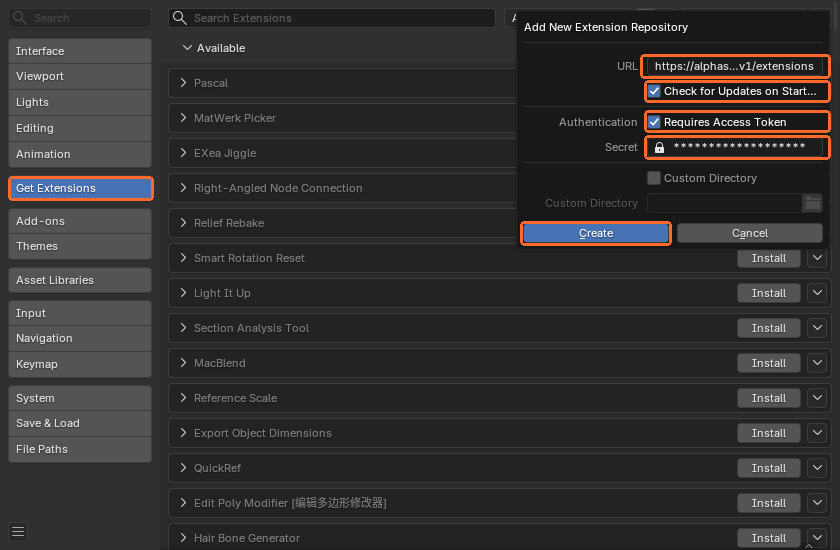
- Install. Type AlphaHuman in the search box of Get Extensions and press Install.

- Activate. Go to Add-ons, find AlphaHuman Studio, open it with the small arrow and press Activate Beta. The token is taken from the repository, so there is nothing to paste. Your 30 days start now; the beta works on two of your computers.
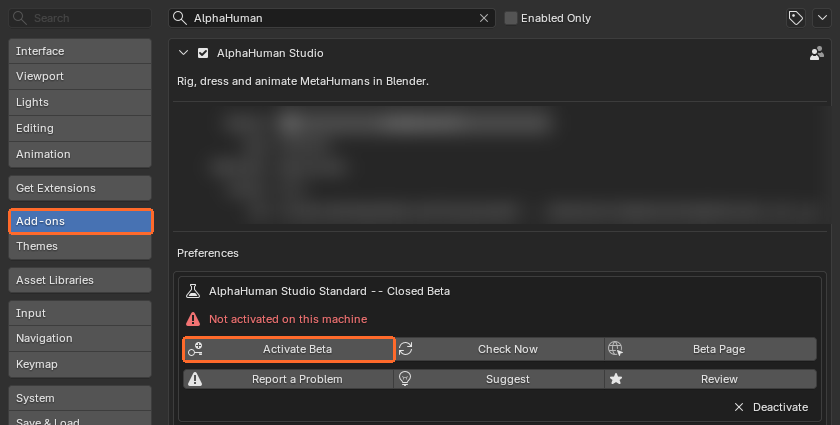
- Point it at your MetaHumans. In the same preferences, set MetaHuman Source Folder to the folder from part A.
Your first character
- In the 3D view press N and open the AlphaHuman Studio tab.
- Under Character, pick one of your MetaHumans and press Import DNA. The first import takes a minute or two: head and body DNA, textures, and the rig driven by RigLogic.
- Open the face board and the picker from the same panel and pose the face and body.
- Then work down the strip: Rig, Animation, Hair, Clothes, Export. Each section starts closed; open the one you are working in.
Standard holds two characters in a scene. The + on the Character panel's header brings in the second; Remove Character makes room for another.
What to test
Anything, on your own work. If you want a checklist, these are the parts we most want eyes on.
Import
Different MetaHumans: body types, ages, one with and one without clothes. Does everything arrive, textures included?
Face
The face board and face cam. Do expressions look like they do in Unreal?
Body rig
Control rig, IK/FK, picker mirror and reset. Anything that twists or flips.
Animation
A Mixamo FBX, a BVH, an Unreal Control Rig or Skeleton take. Do the feet stay planted?
Hair
The Hair Library: hair, brows, lashes, beard. Colours as in Unreal? Strands and cards, the breeze.
Clothes
Garments from the library: fit, skin poking through, the hide mask and painting it.
Look
The portrait light, and renders in EEVEE and Cycles.
Out again
FBX and glTF into another program or back into Unreal.
How to report
The quickest way is from Blender: the About panel (the i at the end of the tab's row) and the add-on's preferences have Report a Problem, Suggest and Review. They open the report form with your version, Blender, Windows and graphics card already filled in. You can also go to alphastudio.pages.dev/portal/report directly.
A good bug report has:
- What you did, step by step, from a fresh file if you can.
- What you expected and what happened.
- A screenshot, or a short screen recording.
- If Blender showed an error: open Window → Toggle System Console and copy the last lines.
- Which character, if it happens with one and not another.
Every report is read. Testers whose reports go beyond the basics go into a draw for full licences at the end of the beta.
Updates
We will ship new builds during the beta. When there is one, Blender asks shortly after it starts: Update Now downloads and installs it; restart Blender afterwards. Cancel skips that version, and you can still update from the add-on's preferences, under Closed Beta. News from us appears in the same place, once.
Save your work before updating.
If something goes wrong
- Install says the repository needs a token, or finds nothing.
- Open the repository again (Get Extensions → Repositories menu) and check Requires Access Token is on and the token is pasted whole. Tokens can be revoked and made again under Keys.
- Activate Beta says it cannot activate.
- Check your beta page says you are in, and that you have not used both computers already; you can free one with Release under Your computers on the beta page.
- Another AlphaHuman Studio is still installed.
- Uninstall it under Add-ons, restart Blender, then install from the Alpha Studio repository.
- No characters to import.
- Check MetaHuman Source Folder points at the folder you exported into in part A (the one holding a folder per character), not at one character's folder.
- Hair comes in grey or without colour.
- That character was exported with an older plugin. Update the plugin from Fab and export it again.
Stuck anyway? Write to us through the report form and we will help.